You can upload and save multiple folders containing SOLIDWORKS files to a collaborative space by using the Batch Save to 3DEXPERIENCE add-in.
The following steps are followed to save the SolidWorks file to the 3DEXPERIENCE Platform:
1. In SolidWorks, Click Tools > Batch Save to 3DEXPERIENCE.
2. In the Batch Save to 3DEXPERIENCE dialog box, click Add Folder.
3. In the select folder dialog box, navigate to a folder and click Select Folder.
4. Populate the list of folders that you want to upload by doing the following
a. In the select folder dialog box, navigate to the top-level root folder containing the files you want to save.
b. Click Save Folder
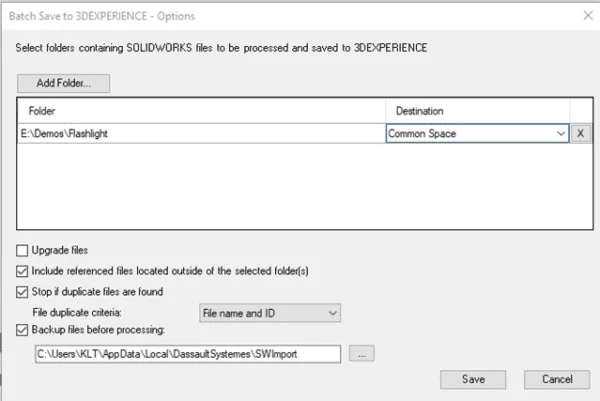
5. In the Batch save to 3DEXPERIENCE dialog box, do the following
a. Click Move Up or Move Down to change the order of the folder.
b.Under the Destination column, select a collaborative space.
c.Under the Bookmark column, double-click the cell or the bookmark icon to bookmark the folder in the Bookmark Editor
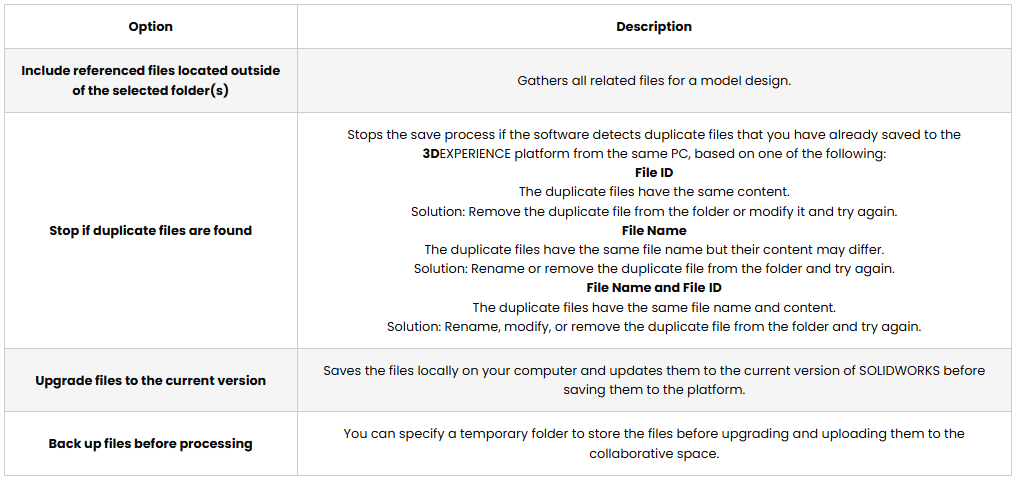
d. Select the following
7. To remove folders from the list, select Clear All.
8. Click Save.