Improvising CAD Conversion Using Derived Format Converter
To generate the derived output by using the tool Derived Format Converter for the files which created in the Desktop\3DEXPERIENCE SOLIDWORKS. Let’s take a look on how to execute this operation.
Note: Admin of the 3DEXPERIENCE Platform only eligible to create and manage the conversion rules.
The conversion rules for the derived format can be assigned on the Derived Format Management.
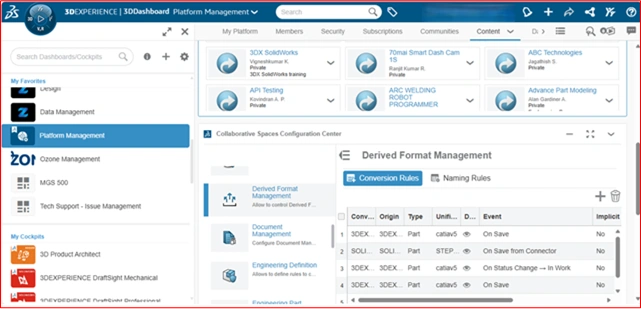
To access this, Login to the Platform using the admin credentials. Go to the dashboard Platform Management > Content tab > Collaborative Space Configuration Center > Derived Format management
Note: These rules assigning for the derived format conversion process are applicable to all the users in their 3DEXPERIENCE Platform
For better convenience, expand the widget to Full screen.
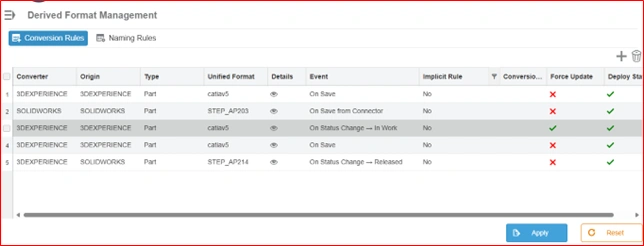
By default, there is some conversion rules exists on it. To remove the existing conversion rule, select the one and click the (Bin) icon.
Now, we going to add a new conversion rule by clicking (Plus) icon and then the page appears as below.
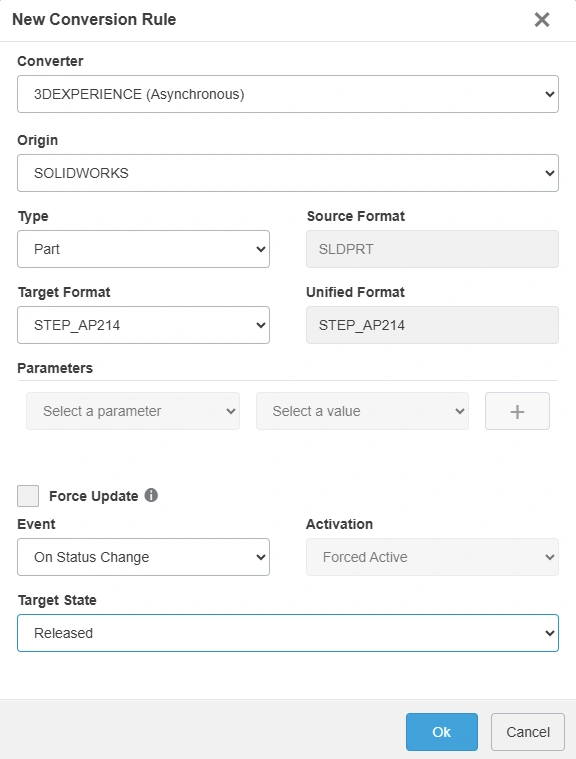
Let’s take a look on rule options with example of Part to STEP conversion.
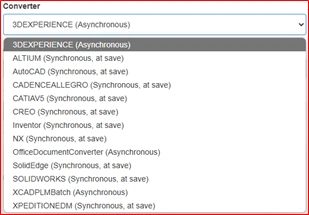
Converter: Select any given software based on the type of the files which needed to your conversion
Origin: As like as converter, select the software as origin which used to work with 3DEXPERIENCE collaboration.
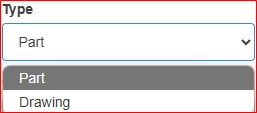
Type: Select the file format which you are used as source of conversion.
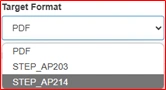
Target Format: Select the file format, which you need to be converted.
Note: The available file format in the drop-down list on the Target Format is based on the selection of converter and Origin
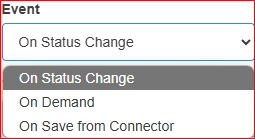
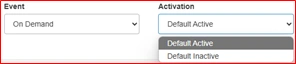
Event: To set the conversion process automatically execute on which operation occurs.
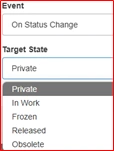
On Status Change – Runs the conversion process based on the file’s Maturity status as shown in the image. Eg: If the status set to ‘Released’, the conversion exists only when the file is in Release maturity state.
On Demand – At Default Active runs the conversion process when you upload the files in 3DEXPERIENCE. At Default Inactive runs the conversion process manually in the Derived outputs tab.
On Save from Connector – It specifically for save files to 3DEXPERIENCE using Collaborative Designer for SOLIDWOKRS.
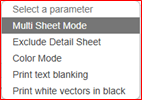
Parameters: It only highlighted when applying PDF conversion from drawing for preference of drawing sheets. After specifying the rule, click OK and Apply to deploy the rule.
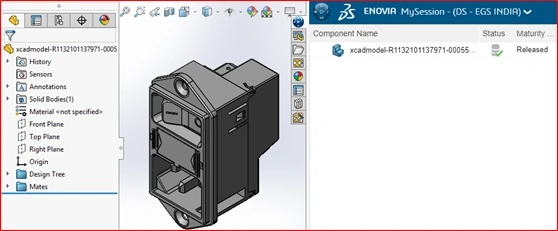
The rule was applied and now save the part file in 3DEXPERIENCE and change its maturity status to Released.
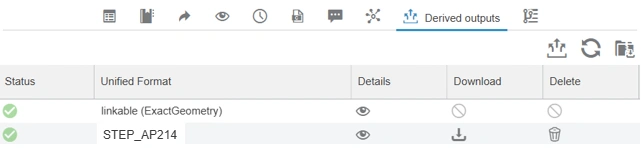
Now open the information of the file and we found that the STEP file was created in Deriver Format Converter with the download option.
Download the file and open using SOLIDWORKS to verify that the model geometry (3D Data) is properly converted. Similarly, we can create PDF for our SOLIDWORKS drawings, Microsoft Office documents & Image files.
Limitations: •Modification on the existing (or) created conversion rules are restricted. •Conversion of Neutral File Format (.stp, igs) for an SOLIDWORKS assembly file is incapable.
Contact Us: Have questions or need assistance? Feel free to reach out!