INTRODUCTION OF SOLIDWORKS INSPECTION:
The SOLIDWORKS Inspection add-in automates the ballooning of engineering drawings and 3D files with Product and Manufacturing Information (PMI). Minimizing the time needed to record inspection measurements, SOLIDWORKS Inspection streamlines the creation of industry-standard inspection reports. One of the key features is the ability to IMPORT CMM DATA IN SOLIDWORKS INSPECTION, allowing seamless integration of measurement data.
STEP: 1
First, be sure you have the option turned on in the standalone version of SOLIDWORKS Inspection Professional.
After opening Inspection, go to Home > Options > General > Add-ins > Measurements Input and CMM Data Import.
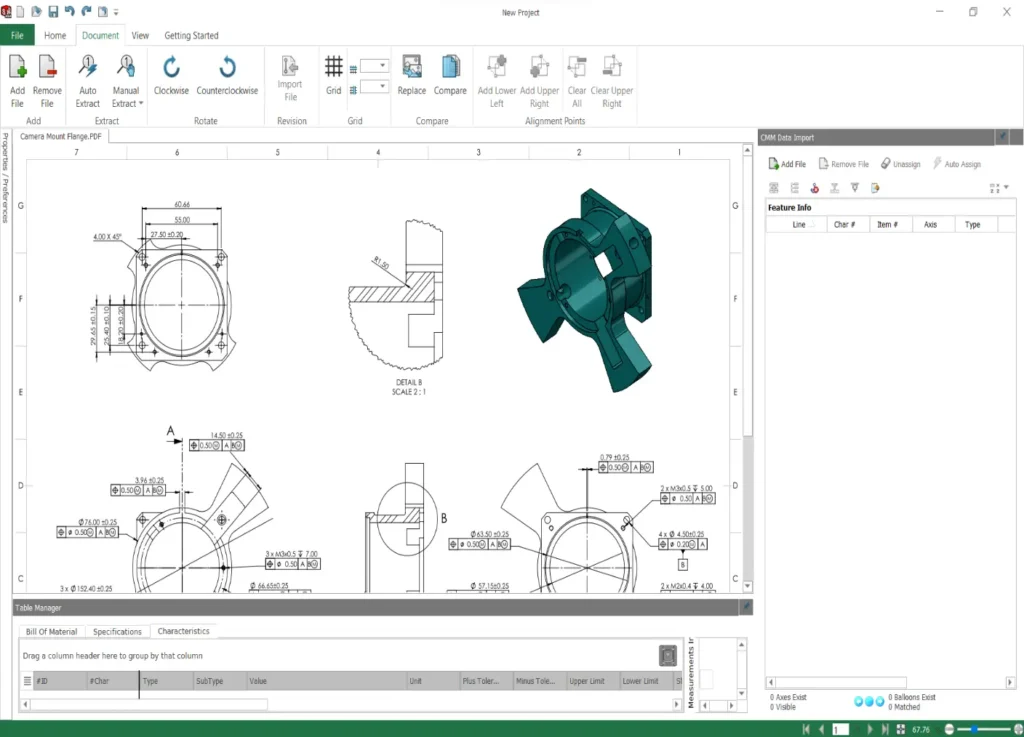
Next, open your completed Inspection project and look for the CMM Data Import tab on the right of the screen. Click the tab and pin it open. This step ensures you can IMPORT CMM DATA IN SOLIDWORKS INSPECTION efficiently.
STEP: 2
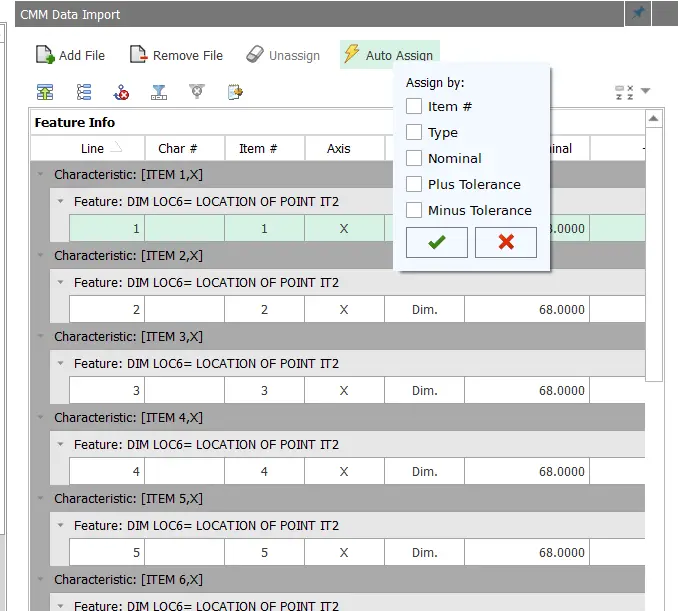
Click ‘Add Files’ and open the file exported from your CMM. SOLIDWORKS Inspection can open files from almost any CMM program, including PC-DMIS, Calypso, Faro, and more. Templates are provided to map measurements from your CMM source to the Inspection project.
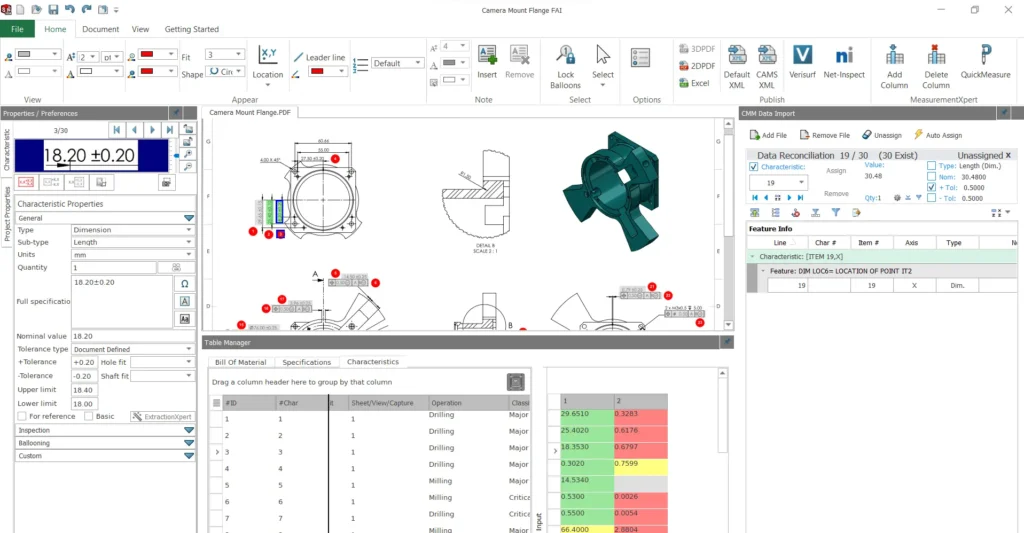
Once the file is added, use the ‘Auto Assign’ button to have Inspection attempt to map all the measurements in the CMM file to the Inspection project. You can choose one or more categories for Inspection to use, including Item #, Type, Nominal, Plus Tolerance, and Minus Tolerance. This process is crucial when you IMPORT CMM DATA IN SOLIDWORKS INSPECTION for automated mapping.
STEP: 3
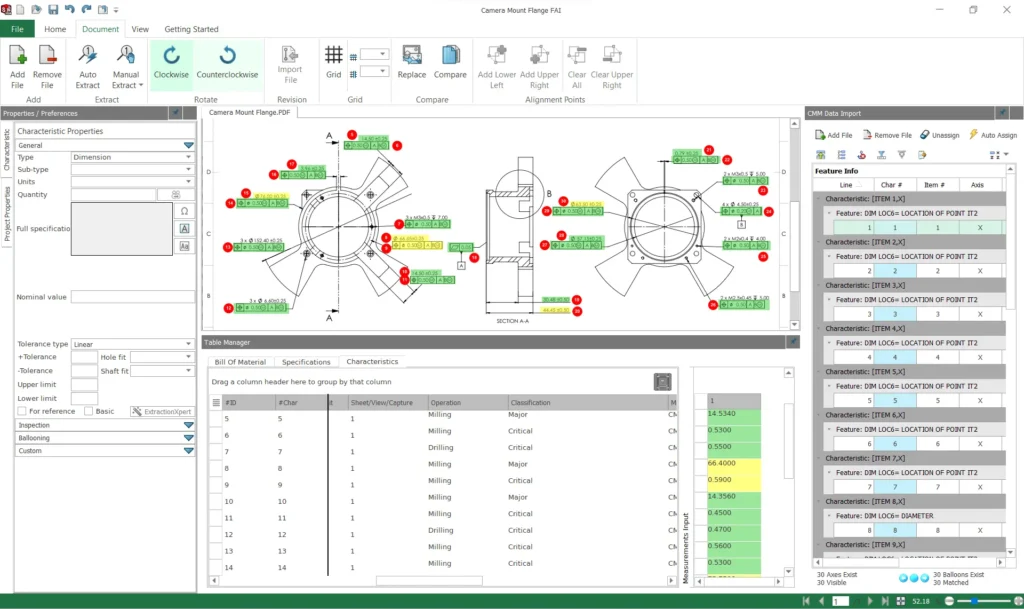
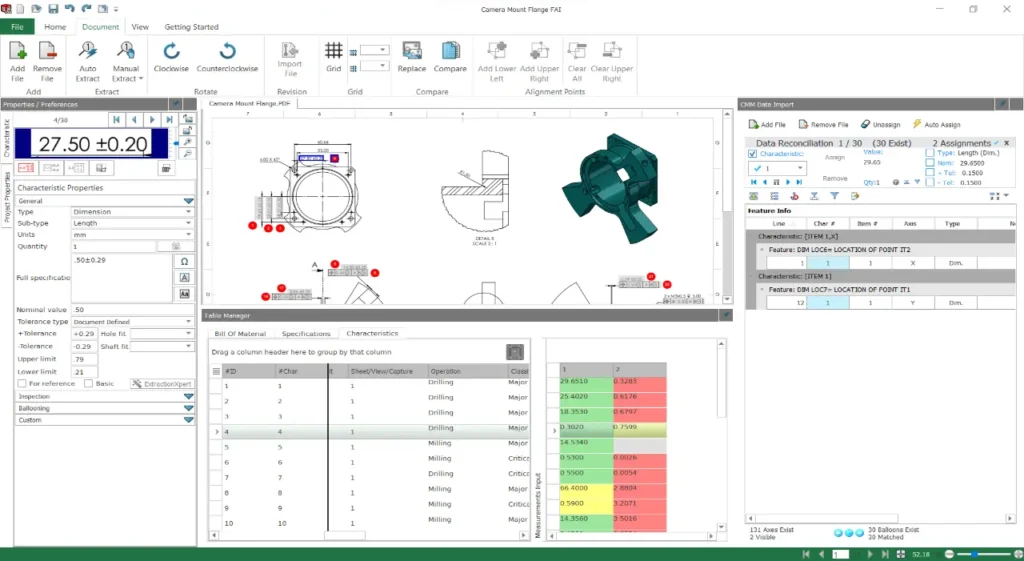
You will see the results in the Table Manager window, complete with color coding in the table and on the dimensions in the drawing that are connected to those characteristics. Green = Pass, Yellow = Marginal Pass, Red = Fail.
If a characteristic on the drawing is Gray colored, the Auto Assign was not able to make a match and you will need to map those manually. For example, Characteristic 10 is missing a result below. This scenario often occurs when you IMPORT CMM DATA IN SOLIDWORKS INSPECTION and need to refine the mapping.
STEP: 4
If more than one set of measurements were taken, all you have to do is click the ‘Add Files’ button again and choose the additional files from the CMM output. Inspection remembers the manual mappings and displays the additional columns of measurements in the Table Manager. This feature is highly beneficial when dealing with multiple measurement sets while you IMPORT CMM DATA IN SOLIDWORKS INSPECTION.
STEP: 5
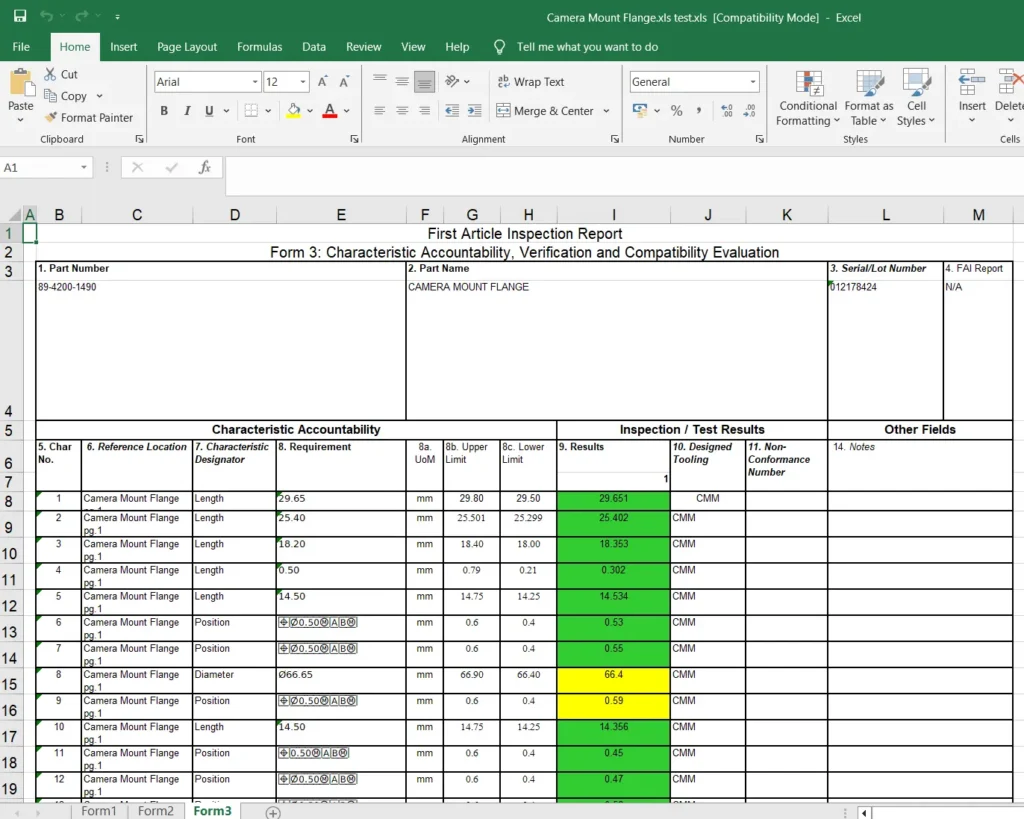
From here, you can publish an Inspection report to share the results with your team. The ability to IMPORT CMM DATA IN SOLIDWORKS INSPECTION ensures that all measurements are efficiently documented and easily accessible.
CONCLUSION:
With the CMM Data Import option, we can IMPORT CMM DATA IN SOLIDWORKS INSPECTION to reconcile measurement values from CMM reports with the expected values from the drawing. This creates a complete inspection report, ensuring accuracy and efficiency in quality control.
Contact Us: Have questions or need assistance? Feel free to reach out!
Email: mktg@egs.co.in
Phone: +91 94454 24704