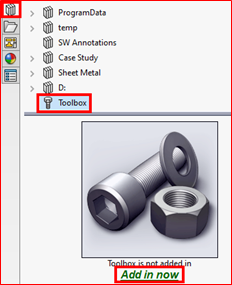
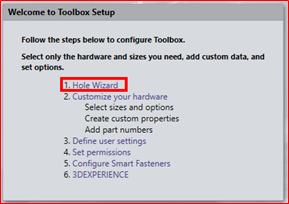
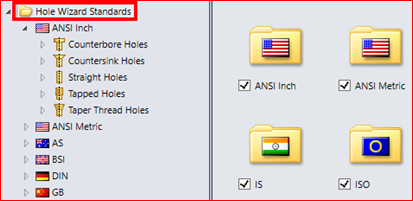
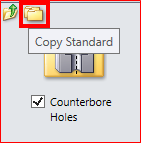
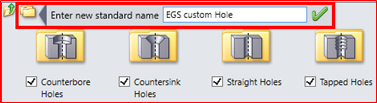
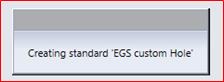
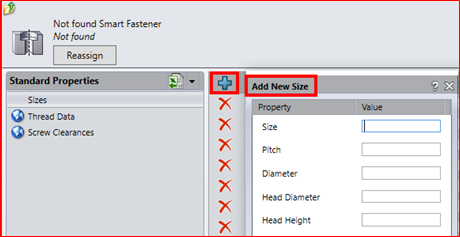
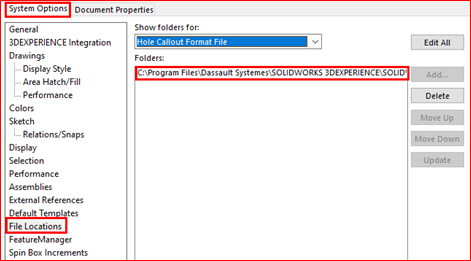
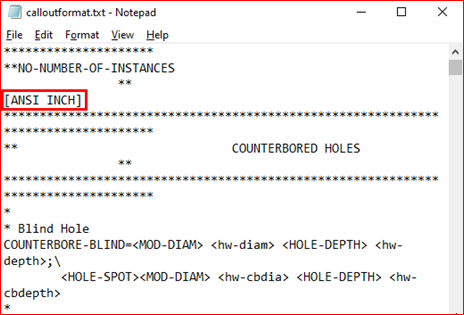
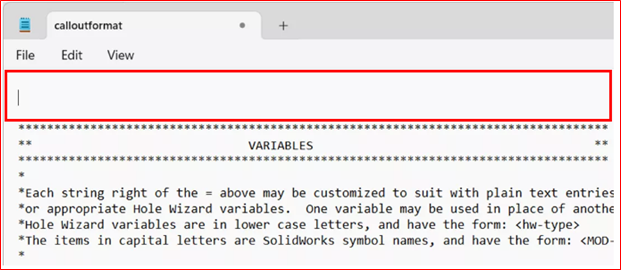
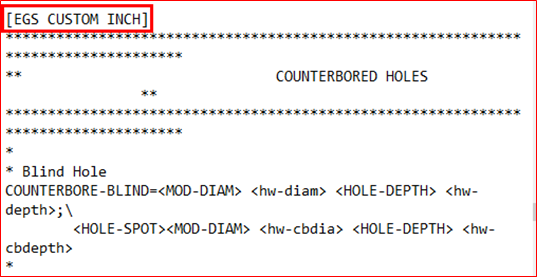
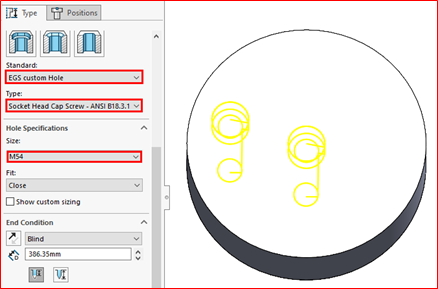
How Do You Create a Custom Hole Callout in SOLIDWORKS Toolbox?By EGS Computers India Pvt Ltd / April 10, 2025 To create a new Hole callout, add the associated hole size to the Hole Wizard.Here let’s create a “M54 EGS CUSTOM INCH” Hole.Step1: Open the SOLIDWORKS library Toolbox and click Add-in. Figure 1 Step2: Click on the Hole Wizard option. Figure 2 Step3: Select a default Hole Wizard Standard. In the top left corner of the central pane, click the Copy Standard button. Figure 3 Figure 4 Step4: Prompted to enter a name for new custom Standard. Toolbox Settings will take a few minutes to create the copy. Figure 5 Figure 6 Step5: Click the Add New Size button at the top of the list of sizes on the Sizes page.In the Add New Size dialog box that appears, initially enter an example number like 0 or 1 for all values, then click OK. Figure 7 Step6: Open calloutformat.txt in Notepad.To find the location of the calloutformat.txtSettings > System Options > File Location > Hole Callout Format File. Figure 8 Figure 9 Step7: Here I have copied the ANSI INCH to customize my EGS CUSTOM INCH format. Figure 10 Step8: Paste before the variables as shown in image. Figure 11 Step9: Rename the ANSI INCH to the desired name (EGS CUSTOM INCH). Figure 12 Step10: Save the Notepad in the same location.Note: If the permission for editing and saving is restricted, contact your admin.Step11: Open the SOLIDWORKS model and check for the custom Hole callout list. Figure 13 Contact Us: Have questions or need assistance? Feel free to reach out!Email: mktg@egs.co.inPhone: +91 94454 24704