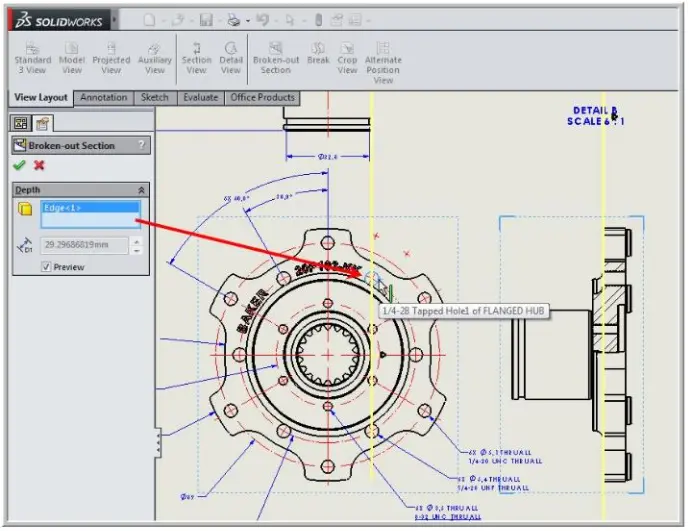
Step-1: Click the Broken-out Section on the View Layout Command Manager tab. Step-2: Create a spline where needs the Broken-out view.
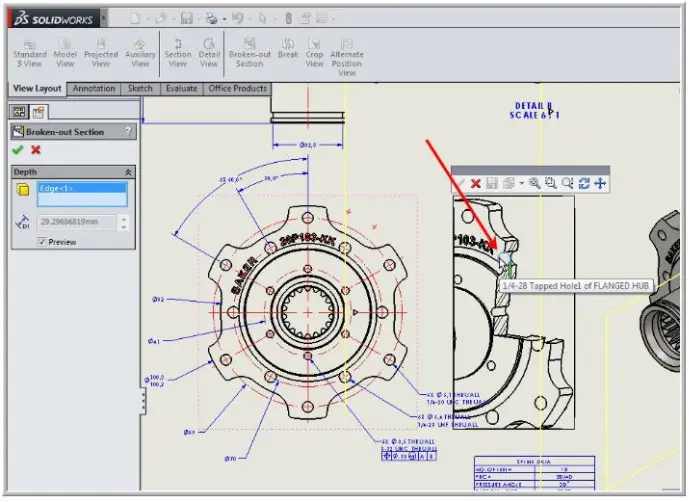
Step-4: Then Click OK. Step-5: Now, Click the depth of view on the other drawing view. Step-6: Here you can see the section Line in Yellow colour. Step-7: Also You can enter the depth value Manually. Step-8: Once the depth is set then the preview is shows
Step-9 : Here you can see the 3D Drawing View option Shown on the below figure. Step-10 : By Enabling this option you can able to view the 2D drawing in 3D View, also shown on the below image.
Contact Us: Have questions or need assistance? Feel free to reach out!