Open new part document Click New (Standard toolbar) or File > New. In the dialog
box, select “Part” or your standard custom part document.
Then open the “File Properties” using the icon as shown in the below image.
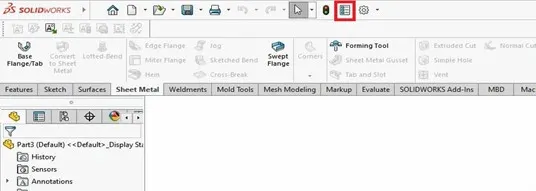
The properties dialog box is opened, under the “custom” & “Configuration Properties” tab we add the SOLIDWORKS part template file properties
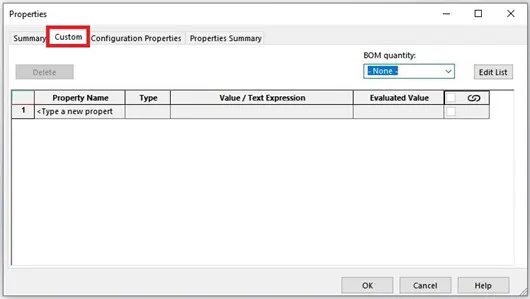
Adding Properties:
• First row is provided but it is empty so lets start adding the properties
• Start with “Property Name” by drop down it shows a pre-made set of items
were displayed in the list. I select “Drawn By”.

• Second column is the “Type” we need to choose how to display the property I
select the “Text” type.
• Then move to “Value / Text Expression” here is where we need to enter who
drawn the model.
• The Last is the “Evaluated Value” this will be the value shows once the property
is called upon.
• Auto Populating Properties like material, weight have their own Value / Text
Expression auto displays what material is added in the model. By selecting the
drop down list on the Value / Text Expression.
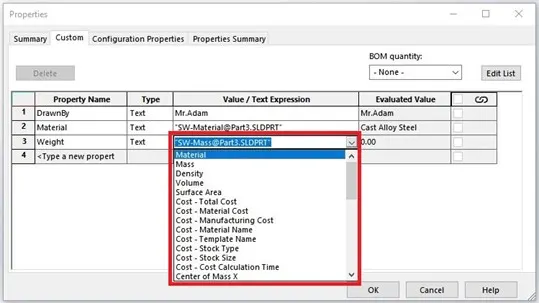
Example: Here, I adds some of the common properties used by the ISO standard
company as shown in the image.
Finally click “OK” to add the property.
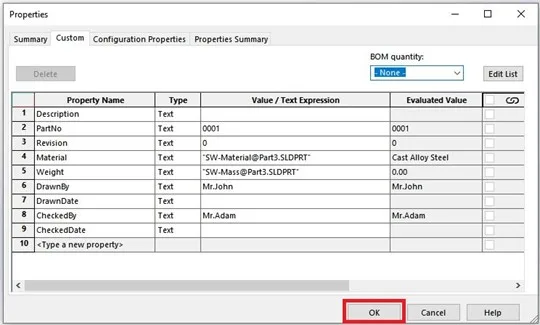
If we want add, edit, delete or change the position of the custom properties list by click Edit List on the top right corner for the properties window.
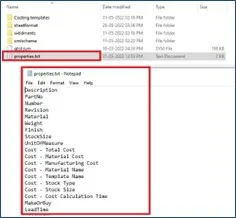
We can also edit the custom properties list by using the Notepad by finding the custom properties file path shows in the Option> System Option> File Location> custom Property File from the drop down list.
Then browse to that location and find the properties.txt file and you can easily add,
edit, delete or change location of the properties list.
Then save part file as template file, and you can reuse it for upcoming model files
without any further delay.
Author: Sakthivel A is an Application Engineer at EGS Computers India Pvt Ltd, specializing in supporting and delivering value-added services to a diverse range of SOLIDWORKS customers for the past 3 years. He excels in understanding customer requirements and providing customized solutions to meet their needs effectively.
Contact Us: Have questions or need assistance? Feel free to reach out!
Email: mktg@egs.co.in
Phone: +91 94454 24704